
Find Student(s)
✑ From the OSIS sidebar, Click on the Find Student(s) link under Student Management.

The find student(s) page has an Input textbox field with a search icon button, Advanced Search button, and Last Search button.

A. Input textbox field: this textbox allows the user to do a basic search of the following;
- Registration number: the student Reg. No.
- Name: The name of the students.
- Mobile: the students’ mobile number.
- Email: the students’ email.
✑ Click on the search button icon to get results after entering any of the above. 
B. Advanced Search: Click on the Advanced Search button to do a more narrow search to get particular information or a certain group of students with or without any uniqueness based on the following;
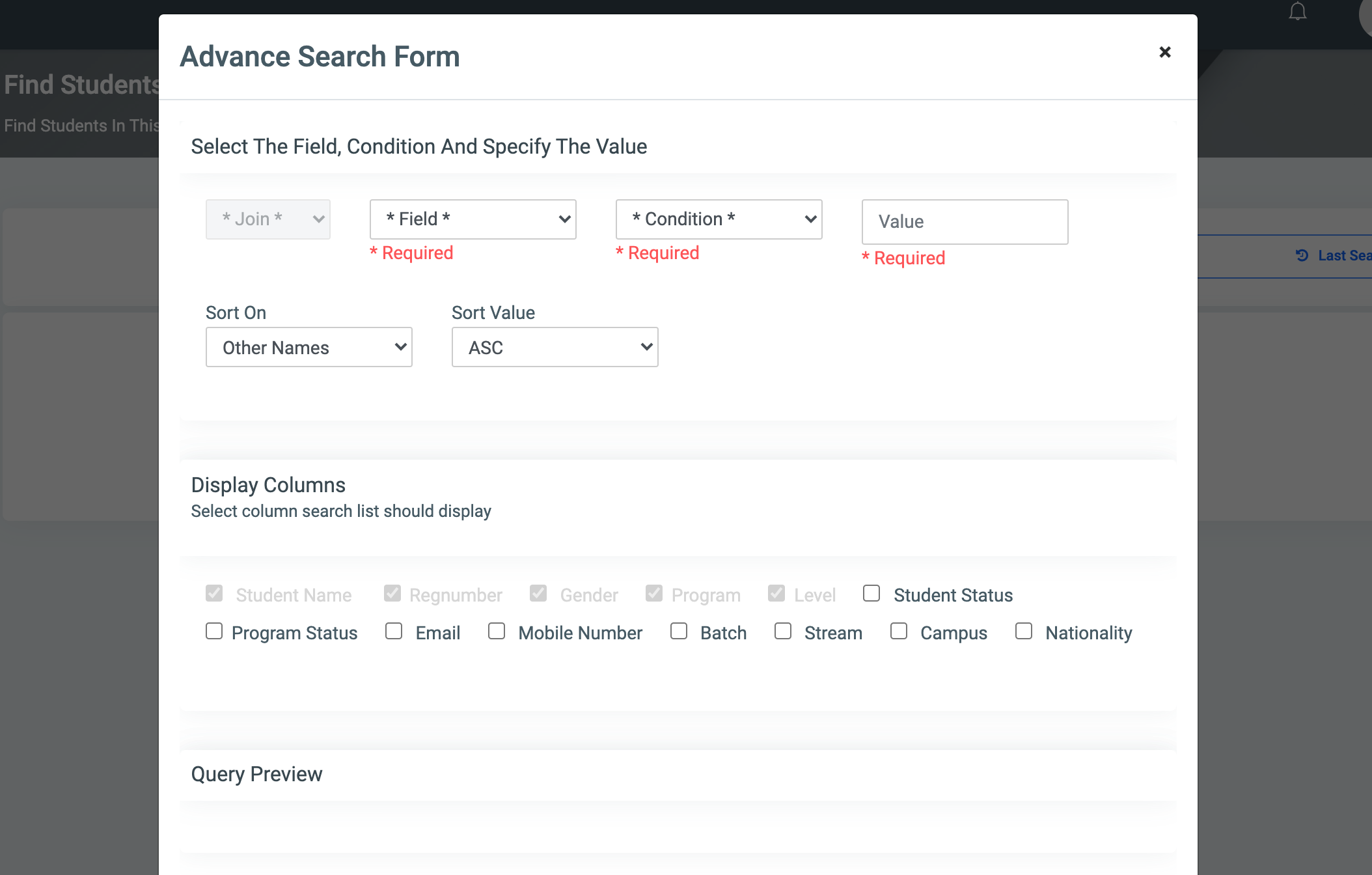
- Field: The field displays a dropdown of all students Personal and Program information titles to search from. Eg. Select Gender from the dropdown.
- Condition: the condition works dynamically based on the selected Field. Eg. Select equals to from the dropdown.
- Value: Select or type-in the value you are looking for from the selected Field dropdown. Eg. select Male from the dropdown.
- Click on the round Plus button icon to show in Query Preview.

- NB: You can click on the Submit Query button to get results or join more fields to narrow the search.
- Click on the round Plus button icon to show in Query Preview.
- Join: Use joins to combine other Fields in other to narrow deep down your search. Users can select the following type of Joins;
- AND: The AND operator displays a record if all the conditions separated by AND are TRUE.
- OR: The OR operator displays a record if any of the conditions separated by OR is TRUE.
- Sort On: This provides a dropdown of all students Personal and Program information titles to sort from.
- Sort Value: The user can sort in ascending order(ASC) or descending order(DESC) of the selected Sort On.
- Dynamic Columns; This feature allows the user to select specific columns the search results should display. Some columns already come checked/selected by default. These include Student Name, RegNumber, Gender, Program, and Level. The others, however, are optional: Student Status, Program Status, Email, Mobile number, Batch, Stream, Campus, and Nationality.
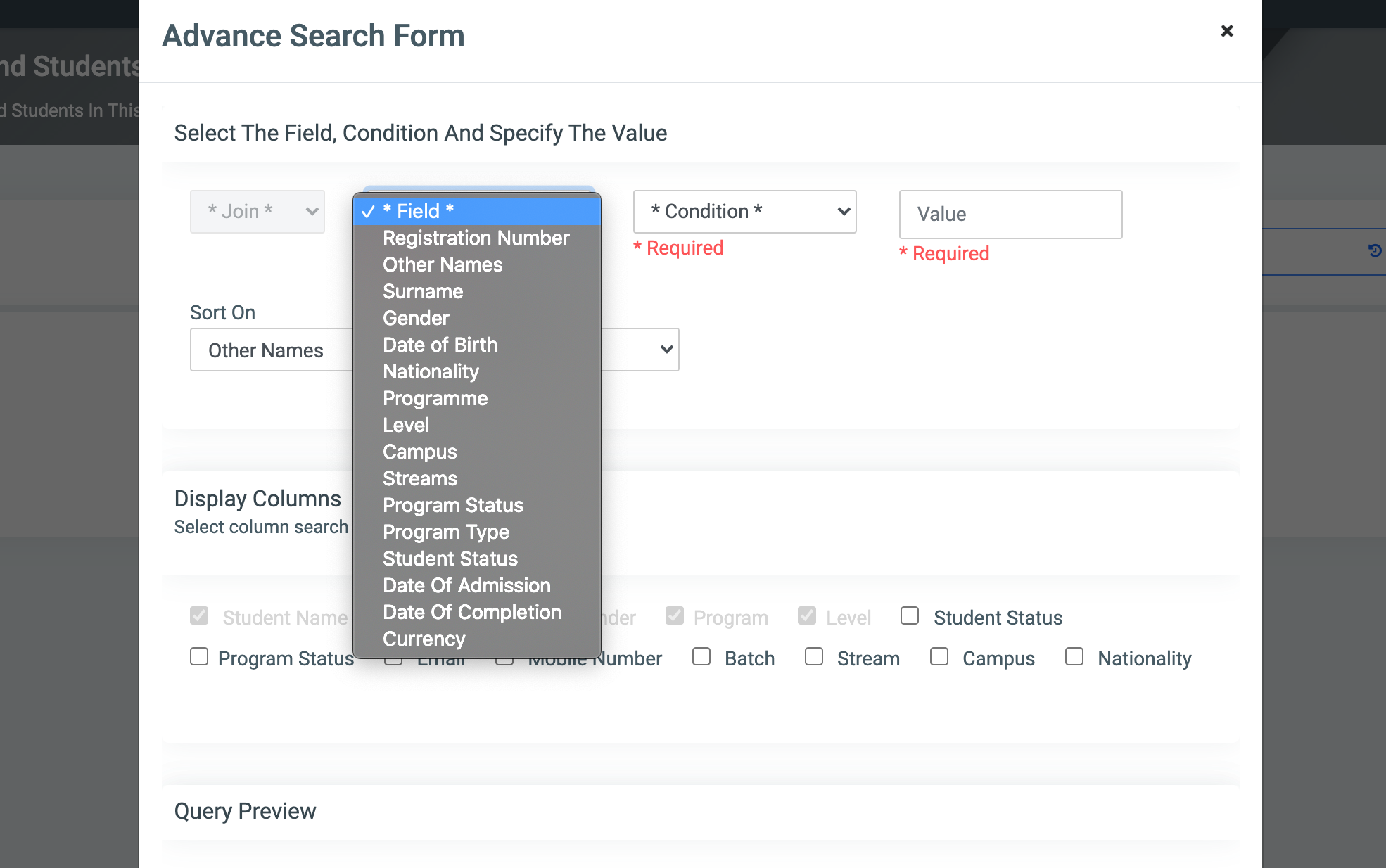
☛ Query Preview shows or displays the label of all selected Fields, Conditions, and Values of the user search query. Users can edit the query or delete it to start again.
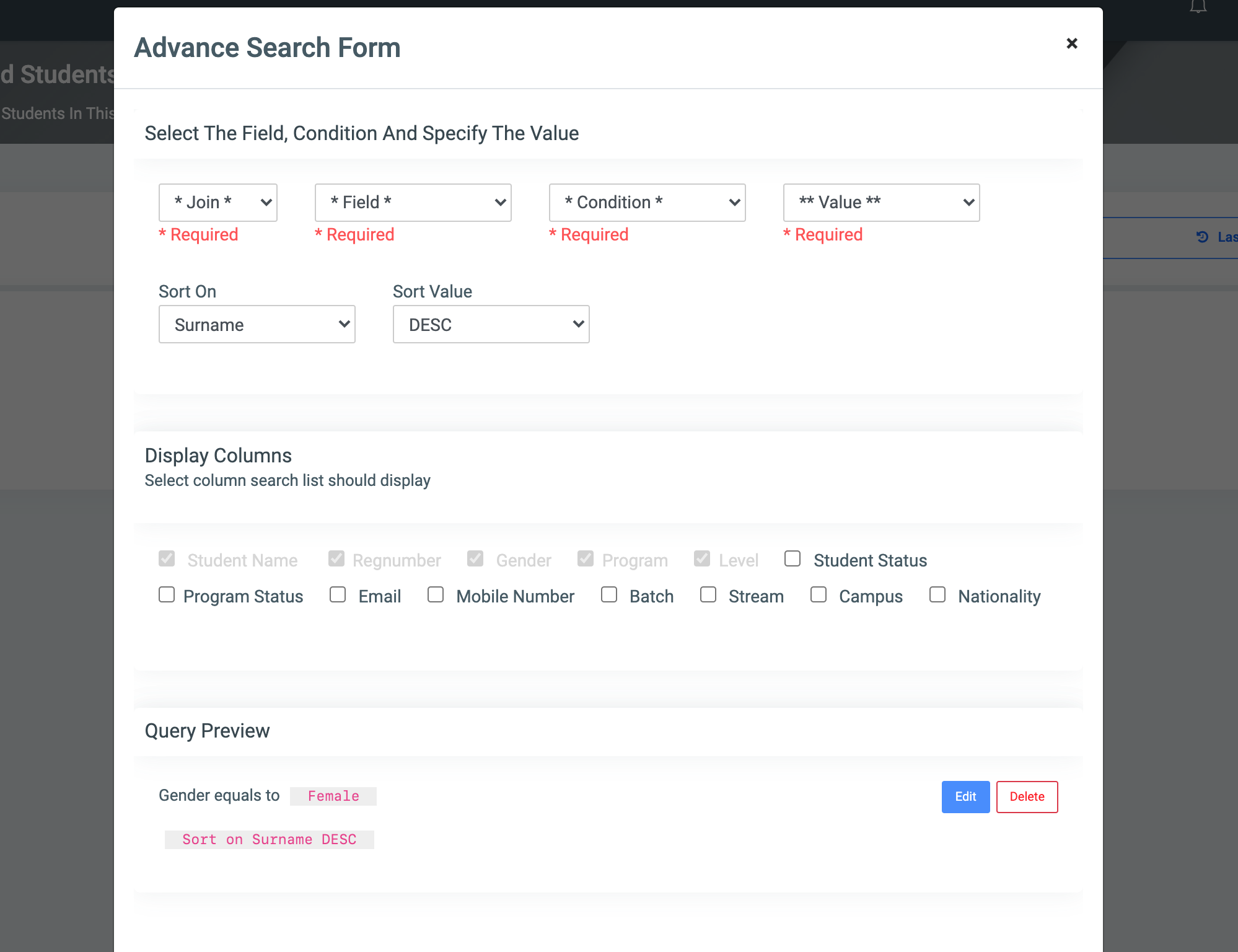
✑ Click on the Submit Query button to get results.
For each Query result of students, the user can view or see the following fields.

- Name: Name of student
- Reg. No.: Student Registration number.(with their applicant number displayed beneath)
- Mobile Number: Students’ mobile number
- Email: The Students’ email.
- Program: The students’ program they’re taking
- Level: The level of the students’
- Student’s status: Students’ status eg. Active or Inactive
- Action: This has a Send SMS button to send an SMS to the student. Check Send Single Message.
C. Last Search: Click on the Last Search button to get search results of the last information searched for if any.