
Manage Campuses
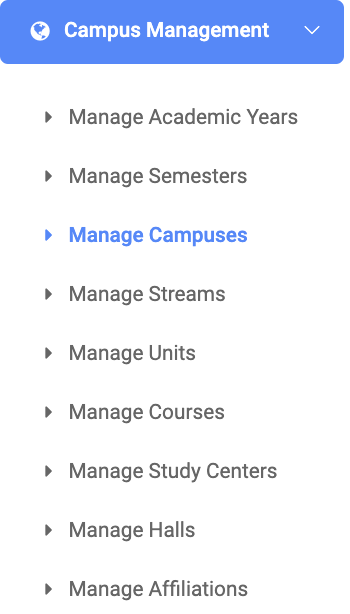
✑ From the OSIS sidebar, Click on the Manage Campuses link under Campus Management.
✑ From the top right of the Manage Campuses page, Click on the Add Campus button to create a new campus.

The new campus form has five(5) fields.
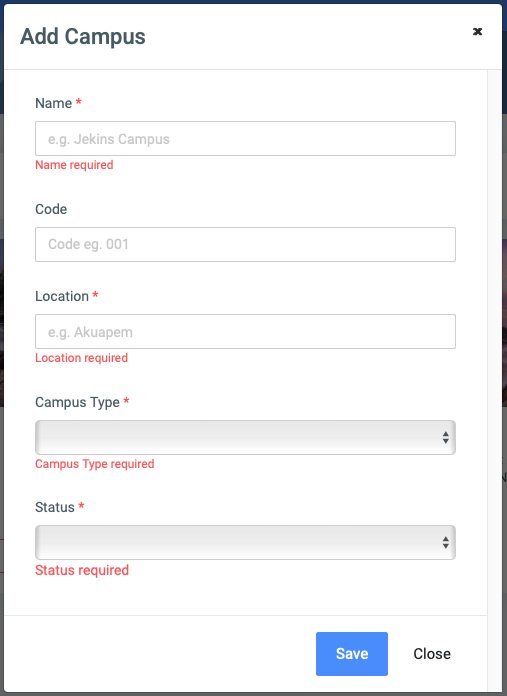
- Name: The name of the campus eg. Dansoman.
- Code: The code name of the campus
- Location: The location in which the campus can be found.
- Campus Type: The type of campus. This setting has a dropdown with three main selections as follows.
- Main
- Admin
- Academic
- Status: Active or Inactive
✑ Click on Save to confirm your actions.
For each added campus, the user can Edit or Delete them.
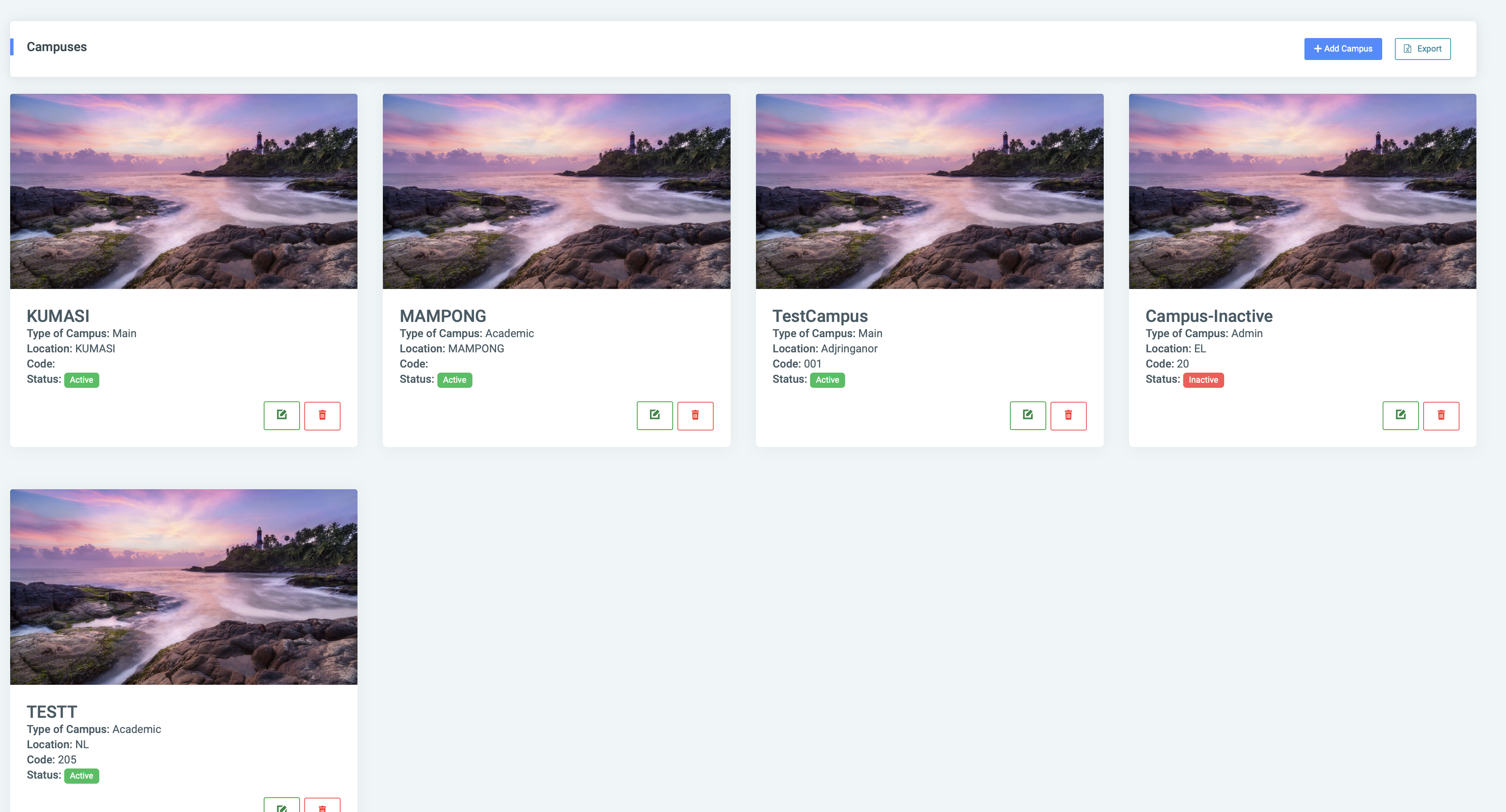
✑ To Edit a campus, Click on the edit button icon. 
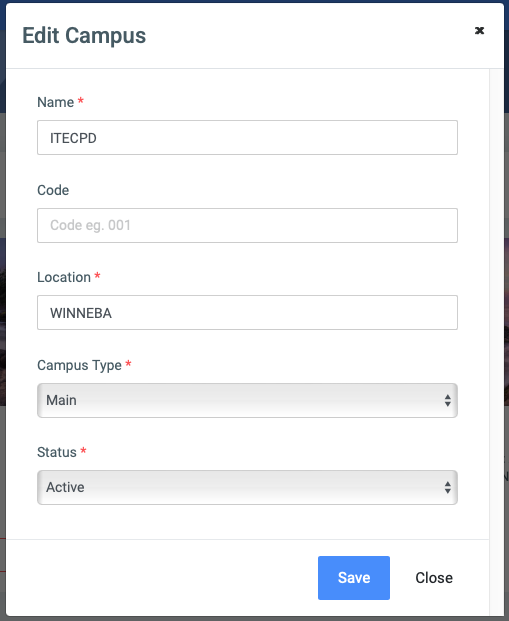
Change the old entries from the Edit Campus form and click on the Save button.
✑ To Delete a campus, Click on the delete button icon. 
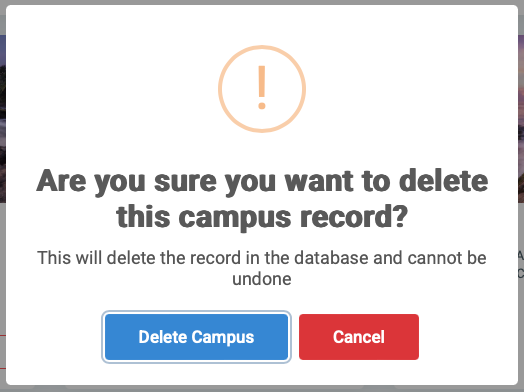
✑ Click on the Delete Campus button from the modal popup to confirm your actions.