
Payments
This report provides the list of paid invoices.
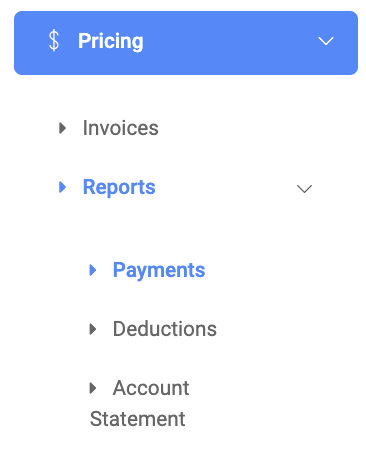
✑ From the OSIS sidebar, click on the Payments under the Reports link of the Pricing module.
On the Payments page, there are two(2) buttons namely; Find and Export.

✑ To find a payment report, click on the Find button. The find form presents the following fields;
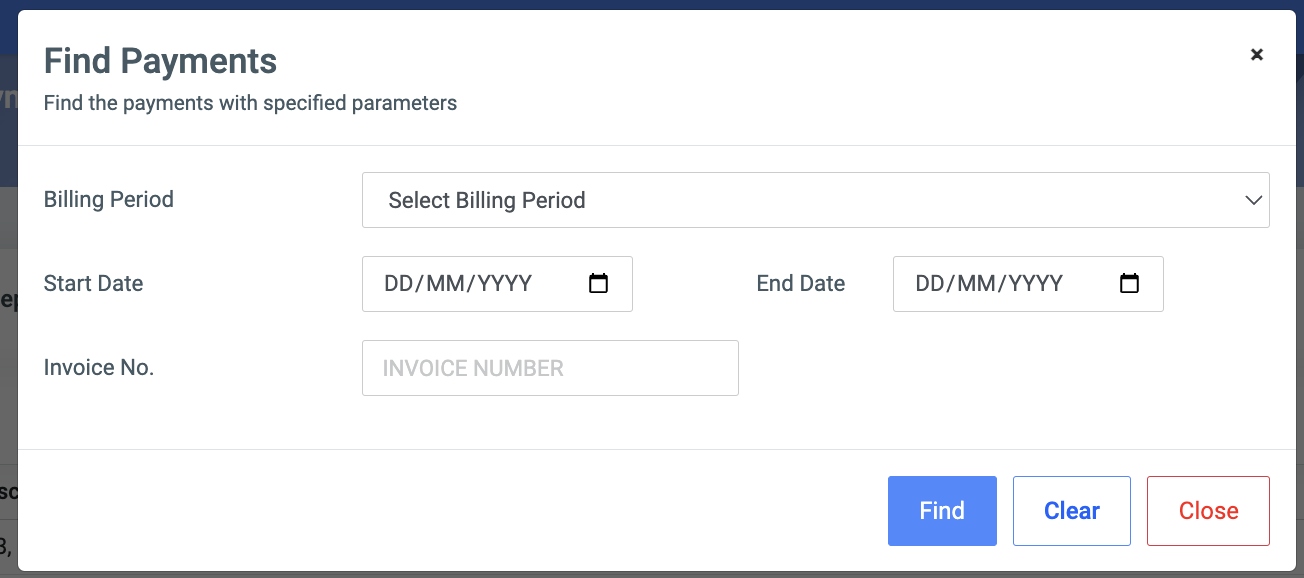
- Billing Period: The list of active billing periods in the school.
- Start Date: Provide the minimum date you want to start your search with.
- End Date: Provide the maximum date you want to end your search with.
- Invoice No. : The unique number generated upon creating the invoice. E.g: PVO7PR.
✑ Click on the Export button to export your results to an Excel sheet.
The list of payments comes with the following fields;
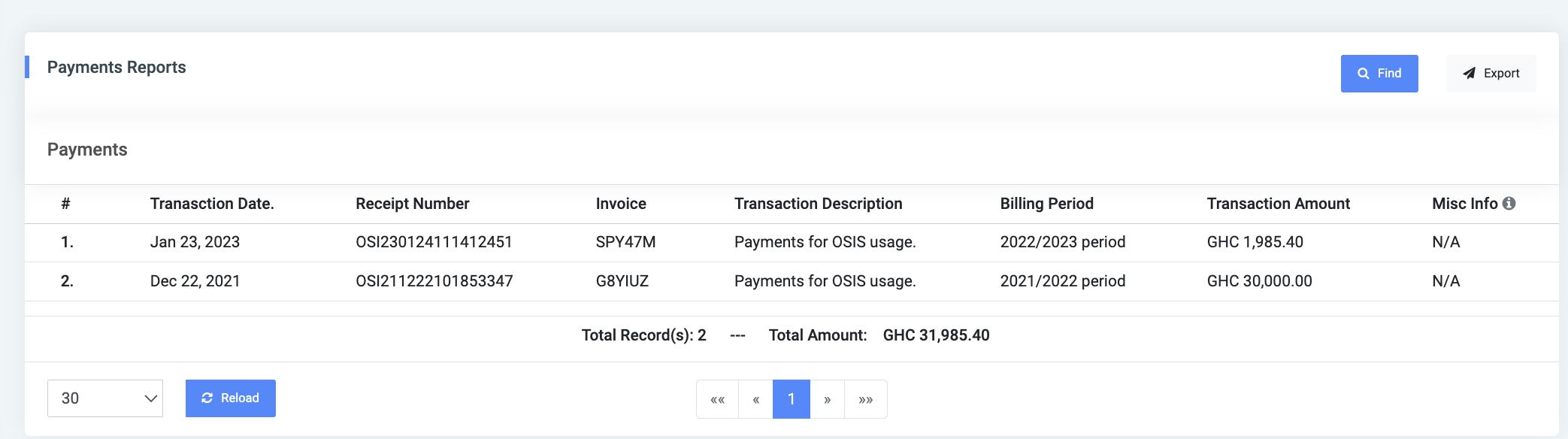
- #: The list item number
- Transaction Date: The date the transaction was made
- Receipt number: The unique number of the invoice
- Transaction Description: A short description of the transaction
- Billing Period: The billing period the invoice falls under
- Transaction Amount: The total amount of the invoice
- Mis.info: This is space for cheque payments recorded through the frontend feature.