
Change Program
This feature helps the user to find and select a student in order to change his or her program.
✑ From the OSIS sidebar, Click on the Change Program link under Student Management.
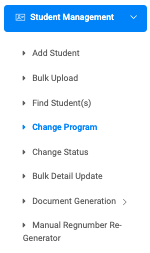
Search for the students you want to change their program. This opens a Change of Program page displaying the student’s current program.
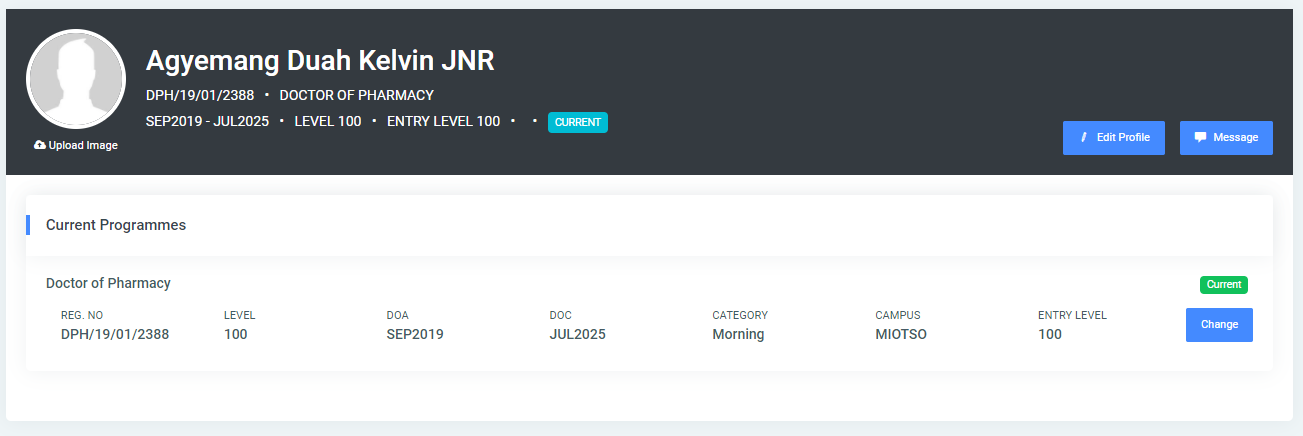
On the top right of the Current Programmes page, there is a Change button.

✑ Click on the Change button to open the modal showing details about the current program and with the following fields to edit.
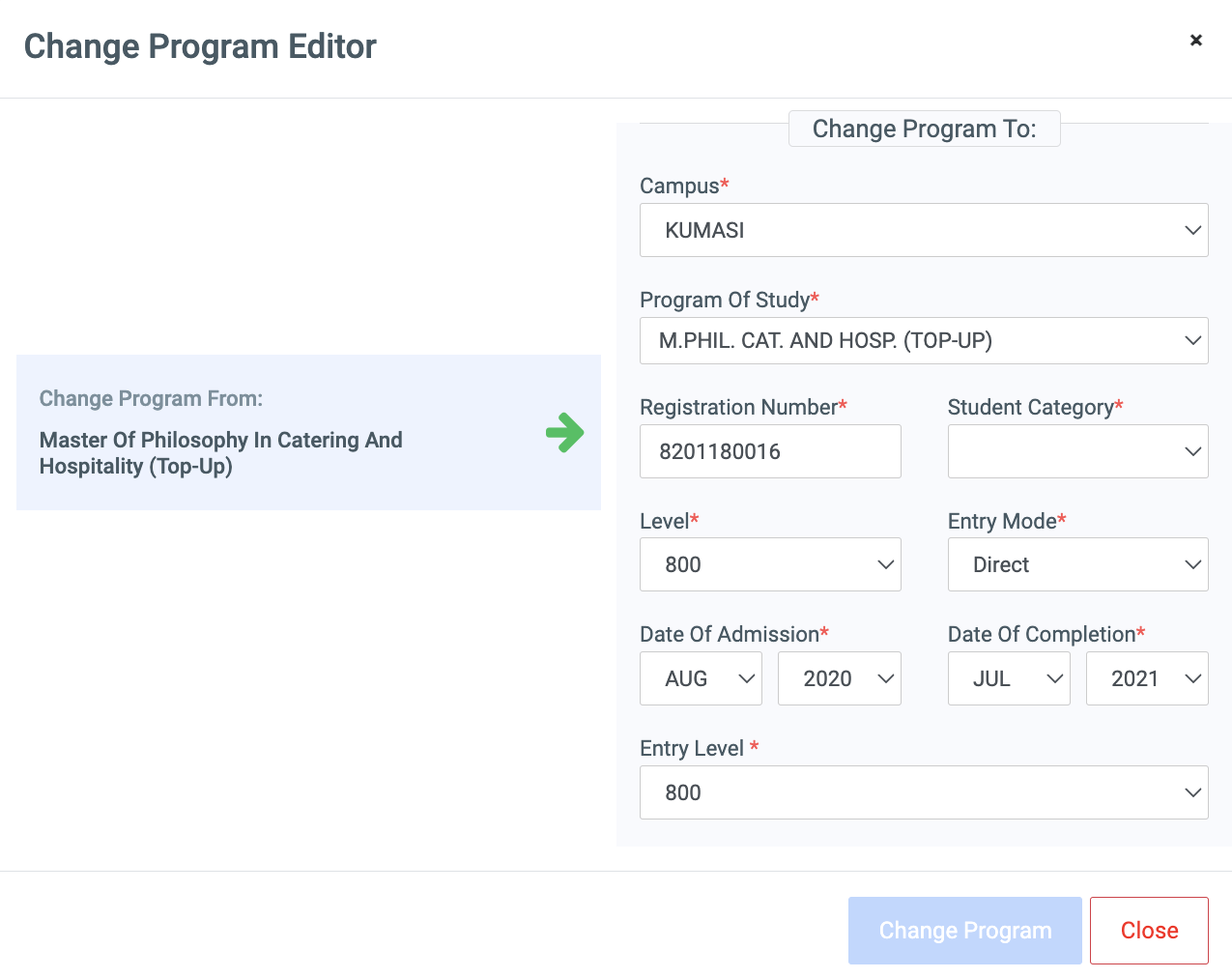
- Campus: This is a dropdown of all added campuses set up by the institution. Check Manage Campuses to add campuses.
- Program Of Study: This is a dropdown of all added programs set up by the institution.. check Manage Programs to add programs.
- Registration Number: Student Registration number
- Student Category: This is a dropdown of all added streams set up by the institution. Check Manage Streams to add streams.
- Level: Dropdown list of all levels.
- Entry Mode: This is a dropdown of all entry modes set up by the school on OSIS. Check Manage Entry Modes to add entry modes.
- Date of Admission: This has two dropdowns, MMM for months and YYYY for years. Select the month and year of admission.
- Date of Completion: This has two dropdowns, MMM for months and YYYY for years. Select the month and year of completion.
- Entry Level: Select from the dropdown list the students’ entry-level.
✑ Click on the Change Program button to confirm actions.